I didn’t think I needed another Linux distro. Manjaro KDE was comfortable, familiar, and worked well enough. But “well enough” meant spending 20 minutes tweaking Plasma widgets, diving through five different settings menus to change a theme, and constantly reaching for my mouse. When DHH announced that 37signals was migrating their entire development team to Omarchy, I got curious. Three weeks later, I’m writing this from an Omarchy system and can’t imagine going back.
The Manjaro Comfort Zone
Manjaro KDE served me well for two years. The graphical installer made setup painless, the rolling release kept my system current, and KDE Plasma offered endless customization options. I had my workspace exactly how I wanted it: custom panels, carefully positioned widgets, a perfectly tuned color scheme that took an entire afternoon to configure.
But that flexibility came with a cost. Every system update meant reconfiguring broken plasmoids. Simple tasks required mouse precision. Finding the right setting meant navigating through System Settings → Appearance → Global Theme → Desktop Theme → Look and Feel, and hoping you picked the right submenu. I was spending more time managing my desktop environment than actually working.
The wake-up call came during a presentation when I couldn’t quickly switch between workspaces because I’d forgotten which mouse gesture I’d configured. That’s when I realized: I didn’t need infinite customization. I needed a system that just worked, beautifully, out of the box.
Discovering Omarchy
Omarchy is an “omakase” distribution - chef’s choice. Built on Arch Linux with the Hyprland tiling window manager, it ships pre-configured with everything a developer needs: Neovim, LibreOffice, Chromium, Spotify, Alacritty terminal. Created by David Heinemeier Hansson (the Ruby on Rails creator), it’s designed for developers who want the power of Arch without the configuration overhead.
The philosophy is simple: opinionated defaults that prioritize keyboard-driven workflows and aesthetic consistency over endless customization. Full-disk encryption is mandatory. The firewall is enabled by default. Themes switch system-wide with a single keybinding. Everything is designed to get out of your way and let you work.
When 37signals announced they were migrating their entire Ops and Ruby programming teams to Omarchy over the next three years, I knew this was worth exploring.
The Installation Experience
Installing Omarchy requires commitment. There’s no dual-boot option on a single drive - it wants full-disk encryption on a dedicated drive. This forced me to make a real decision: was I ready to leave Manjaro behind?
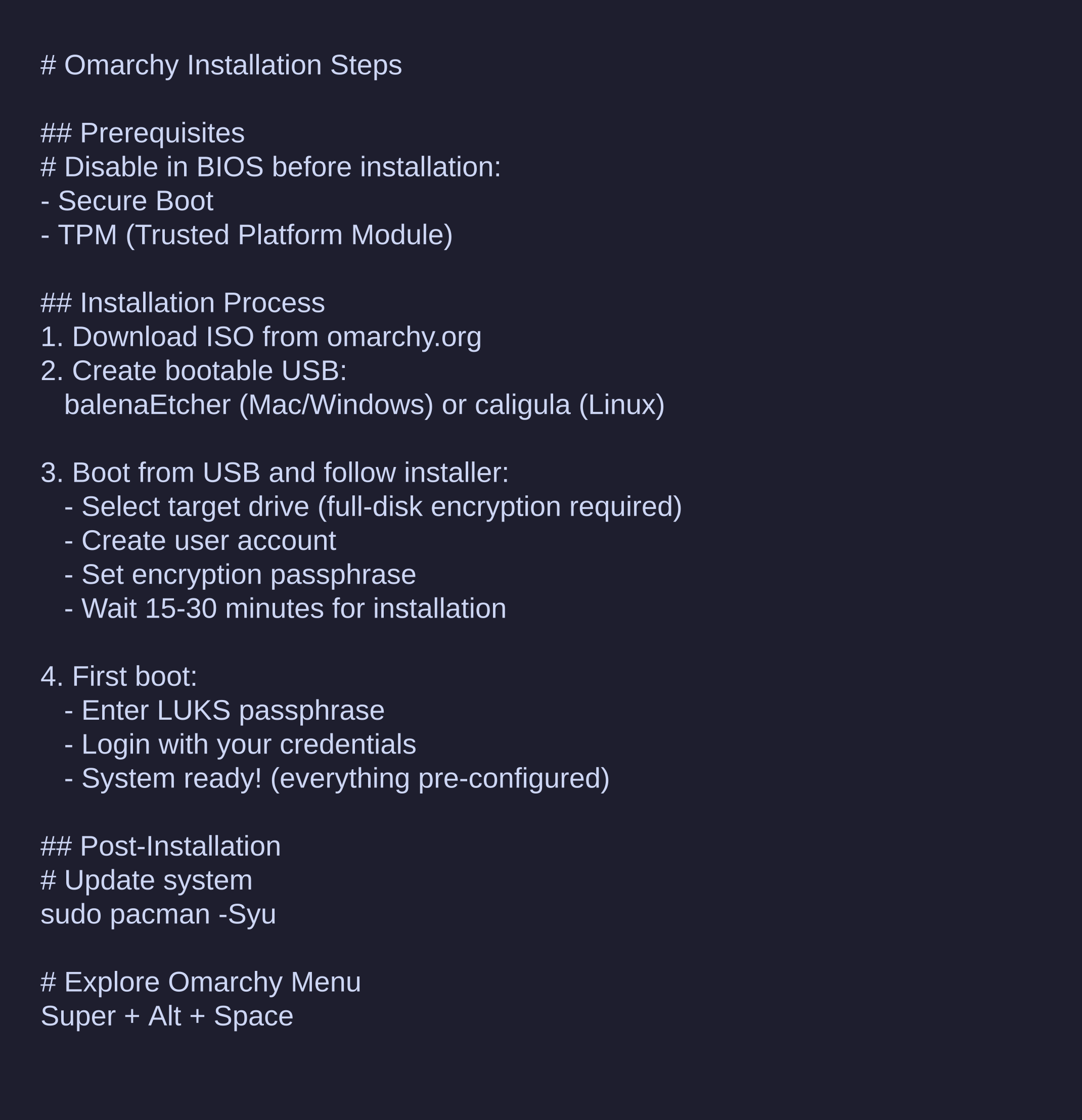
The process itself was straightforward:
- Downloaded the ISO from omarchy.org
- Created a bootable USB with balenaEtcher
- Rebooted into BIOS and disabled Secure Boot and TPM (required for installation)
- Booted from USB and followed the installer prompts
- Selected my target drive, created a user account, set an encryption passphrase
- Waited 25 minutes while everything installed
First boot: I entered my LUKS passphrase, logged in, and saw… a blank screen with a cursor. No panels. No icons. No visual cues at all. I literally couldn’t do anything with the mouse.
This was the moment of truth.
Week 1: The Keyboard Shock
The first hour was brutal. I reached for my mouse 47 times and accomplished nothing with it. My Manjaro muscle memory was completely useless. I felt like I’d forgotten how to use a computer.
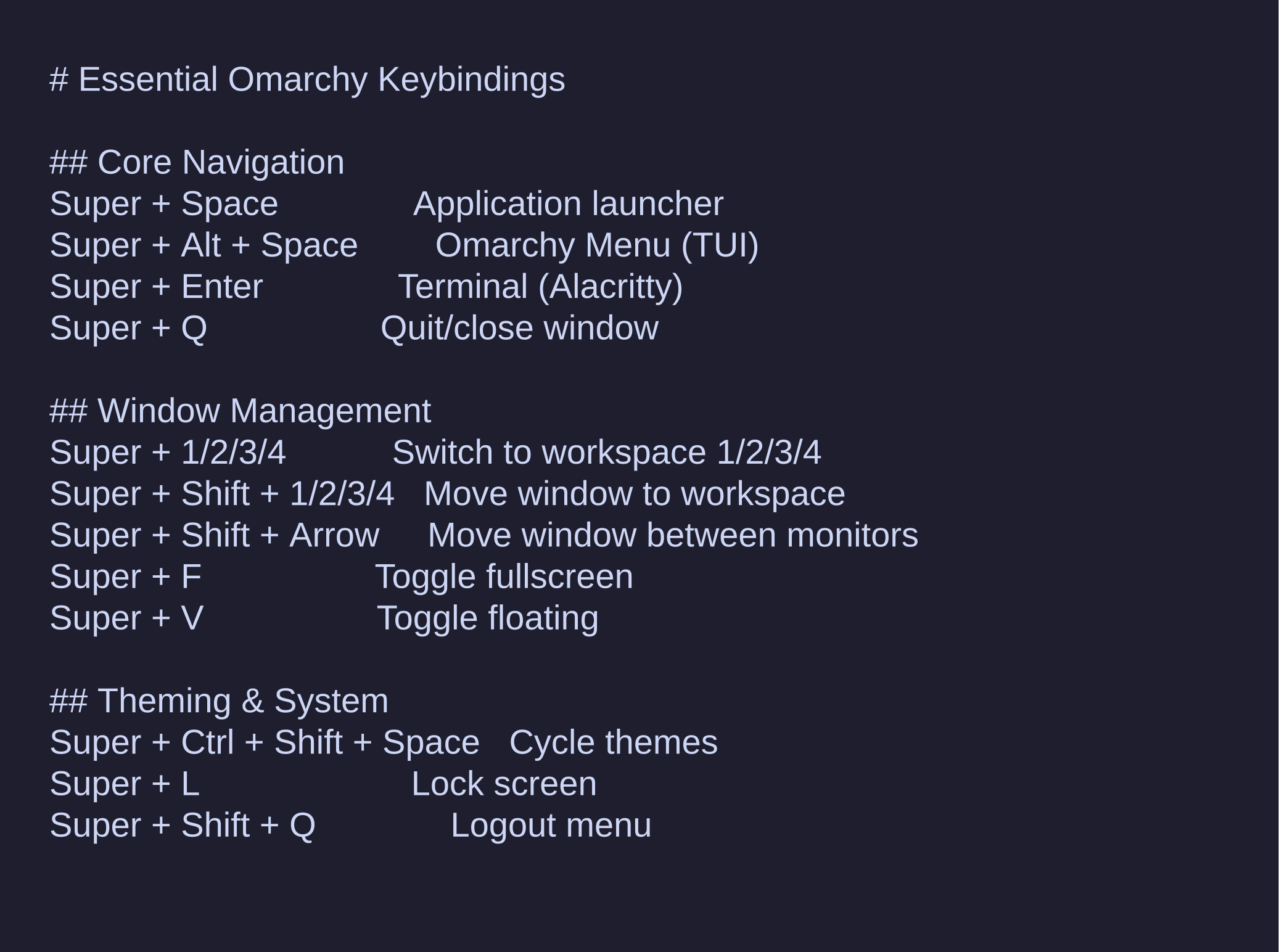
Then I remembered the documentation: Super + Space opens the application launcher. I pressed it, typed “terminal”, hit Enter, and Alacritty appeared instantly. From there, I could look up the essential keybindings:
- Super + Enter: Terminal
- Super + Q: Close window
- Super + Alt + Space: Omarchy Menu (the TUI that controls everything)
- Super + Space: Application launcher
That first day, I kept a cheat sheet open on my phone. Opening Firefox required thinking about it. Closing windows felt unnatural. I questioned my decision multiple times.
But something interesting happened around day three: I stopped reaching for the mouse as often. My hands stayed on the keyboard. The patterns were starting to click.
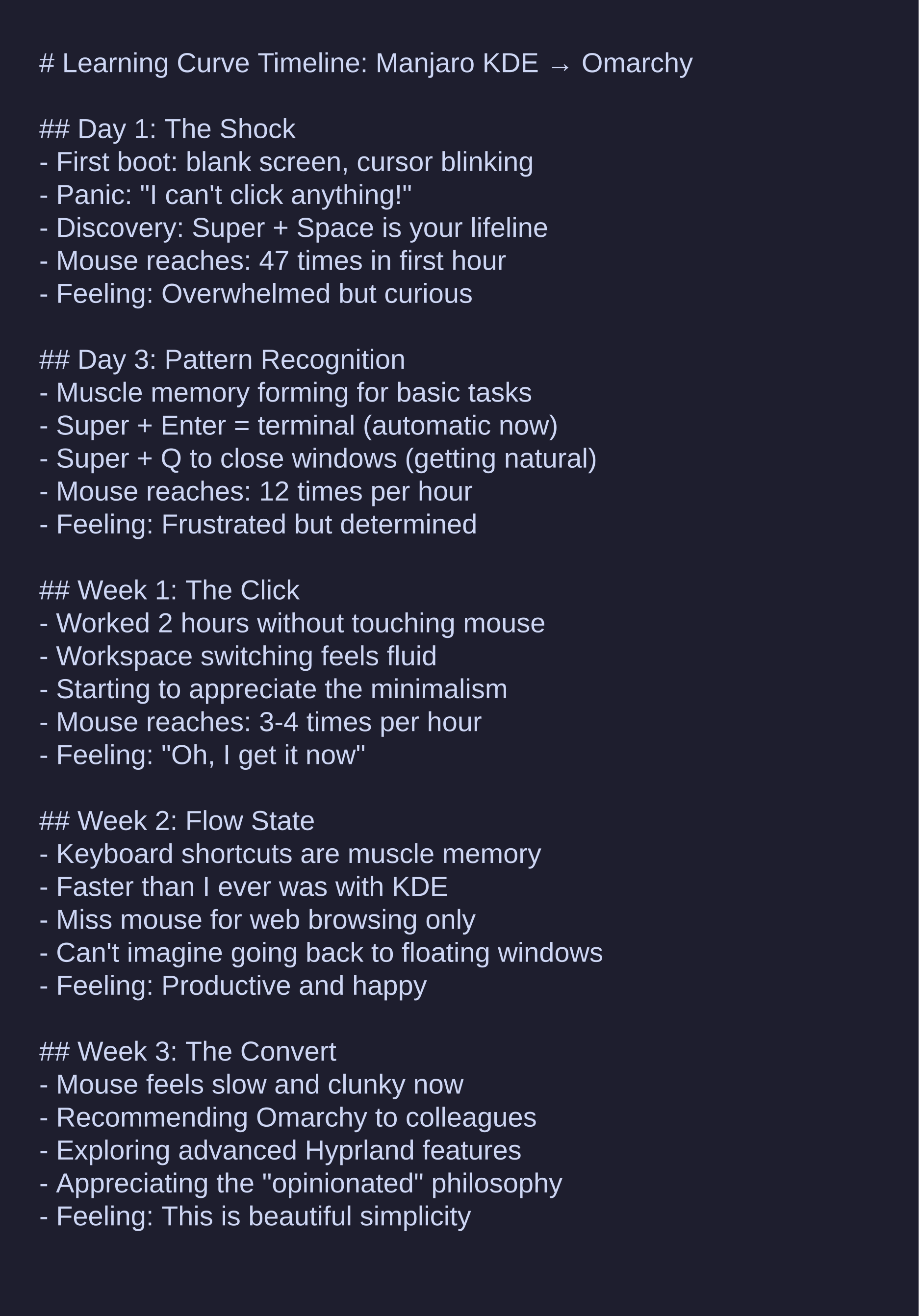
By the end of week one, I had my first flow state moment. I worked for two straight hours without touching my mouse, switching between terminal, browser, and editor purely with keyboard shortcuts. It felt fast. It felt focused. It felt like I’d unlocked something.
Week 2: Finding the Flow
This is when Omarchy started making sense. The keybindings became muscle memory:
- Super + 1/2/3/4: Switch workspaces
- Super + Shift + Arrow: Move windows between monitors
- Super + F: Toggle fullscreen
- Super + Ctrl + Shift + Space: Cycle through themes
Window management with Hyprland became second nature. Instead of precisely dragging windows with a mouse, I’d just Super + Shift + Right to move a window to the second monitor. Instant, precise, no aiming required.
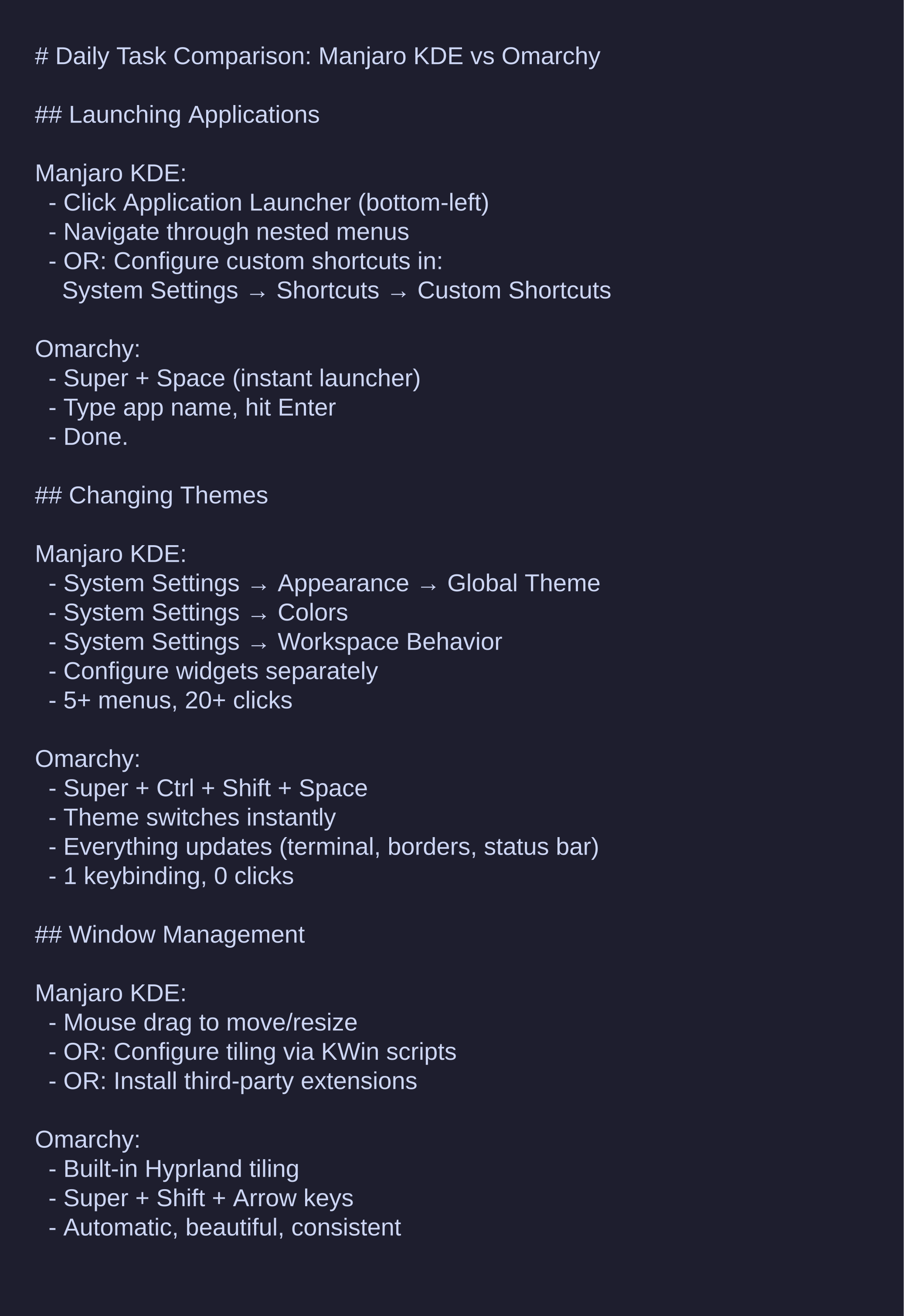
The theming system blew my mind. In Manjaro KDE, changing themes meant:
- System Settings → Appearance → Global Theme
- System Settings → Colors (different menu!)
- System Settings → Application Style
- Manually update terminal colors separately
- Hope all widgets respected the new theme
In Omarchy: Super + Ctrl + Shift + Space. Done. Everything updates: terminal colors, window borders, status bar, application chrome. System-wide consistency in one keybinding.
This was when I realized what “opinionated” really meant. DHH and the Omarchy team already made the hard decisions about how theming should work, how windows should behave, which keybindings made sense. I didn’t need to configure it because someone already configured it better than I would have.
Week 3: The Simplicity Revelation
By week three, the contrast with Manjaro KDE became stark. Here’s what daily tasks looked like:
The more I used Omarchy, the more I appreciated the constrained simplicity. The Omarchy Menu (Super + Alt + Space) gave me a clean TUI for the few things that actually needed configuration: keybindings, monitor layouts, theme selection, application preferences. Everything else just worked.
In KDE, I had widget configuration panels, plasmoid settings, five different theme menus, window rule managers, activity settings, virtual desktop configurations. Most of which I rarely touched after initial setup. It was flexibility for flexibility’s sake.
Omarchy stripped that away. The system made decisions for me, and they were good decisions. I wasn’t spending time configuring anymore. I was spending time working.
Current Workflow: Three Weeks In
Here’s what my daily workflow looks like now:
Morning startup: Boot, enter LUKS passphrase, auto-login to Hyprland. Super + Enter for terminal, Super + Space for browser. Two keybindings, I’m working.
Development: Terminal in workspace 1, editor in workspace 2, documentation in workspace 3, communication in workspace 4. Super + 1/2/3/4 switches instantly between contexts.
Window management: Everything tiles automatically. New window? Hyprland positions it intelligently. Need it elsewhere? Super + Shift + Arrow. The mouse stays parked except for web browsing.
Theme switching: Depending on time of day or mood, Super + Ctrl + Shift + Space cycles through the gorgeous pre-configured themes. Each one is cohesive and beautiful.
The aesthetic quality is notable. Every Omarchy theme is carefully designed. Colors are harmonious. Fonts are readable. Spacing is consistent. It’s the attention to detail you’d expect from DHH - someone who sweats the design details.
The Beauty of Simplicity
The fundamental difference between Manjaro KDE and Omarchy isn’t about features. KDE has more features. More customization. More options. If you want a desktop environment where you can configure literally everything, KDE is unmatched.
But Omarchy made me realize: I don’t want to configure everything. I want beautiful defaults that let me focus on my actual work.
There’s freedom in constraints. When the system makes good decisions for you, you stop agonizing over settings. When keyboard shortcuts are well-designed from the start, you stop creating custom bindings. When themes are professionally crafted, you stop tweaking colors.
The learning curve was real. That first week was uncomfortable. But the other side of that curve is a workflow that’s faster, more focused, and frankly more enjoyable than anything I had with traditional desktop environments.
Is Omarchy Right for You?
Omarchy isn’t for everyone. Here’s who should consider it:
You’ll love it if:
- You’re comfortable with keyboard-driven workflows (or willing to learn)
- You appreciate opinionated software that makes decisions for you
- You value aesthetics and visual consistency
- You’re tired of configuration overhead
- You want Arch power without Arch complexity
Stick with something else if:
- You need heavy mouse-based workflows
- You prefer traditional floating window management
- You want maximum customization control
- You’re not ready for a learning curve
- You rely on specific KDE/GNOME applications that don’t work well on Wayland
Quick Reference
Essential Resources
- Official site: omarchy.org
- Documentation: learn.omacom.io
- GitHub: github.com/basecamp/omarchy
Must-Know Keybindings
See the full reference above, but these five will get you started:
- Super + Space (application launcher)
- Super + Alt + Space (Omarchy Menu)
- Super + Enter (terminal)
- Super + Q (close window)
- Super + 1/2/3/4 (switch workspaces)
Tips for Manjaro KDE Users
- Give it a week: The first few days will feel wrong. Push through.
- Keep the cheat sheet handy: You’ll reference it constantly at first.
- Embrace the keyboard: Every time you reach for the mouse, ask if there’s a keybinding.
- Let go of customization: Trust the defaults. They’re better than you think.
- Use workspaces heavily: They replace KDE’s activities and virtual desktops perfectly.
Final Thoughts
Three weeks ago, I had a perfectly functional Manjaro KDE setup. Switching to Omarchy was a risk. The learning curve was real, and I nearly gave up after the first day.
But now? I’m faster, more focused, and genuinely happy with my computing environment in a way I wasn’t before. The system is beautiful, consistent, and stays out of my way. I spend less time managing my desktop and more time doing actual work.
Sometimes simple really is beautiful. Sometimes opinionated software that makes good decisions for you is better than infinite customization options. And sometimes the best thing you can do is commit to a steep learning curve because the other side is worth it.
If you’re curious about Omarchy, my advice is simple: give it a real shot. Not a VM test drive, not a dual-boot experiment. Full installation, one week commitment, keyboard-only discipline. The first few days will be uncomfortable. But by week two, you might find yourself wondering why you ever needed all those settings menus in the first place.
Welcome to beautiful simplicity.